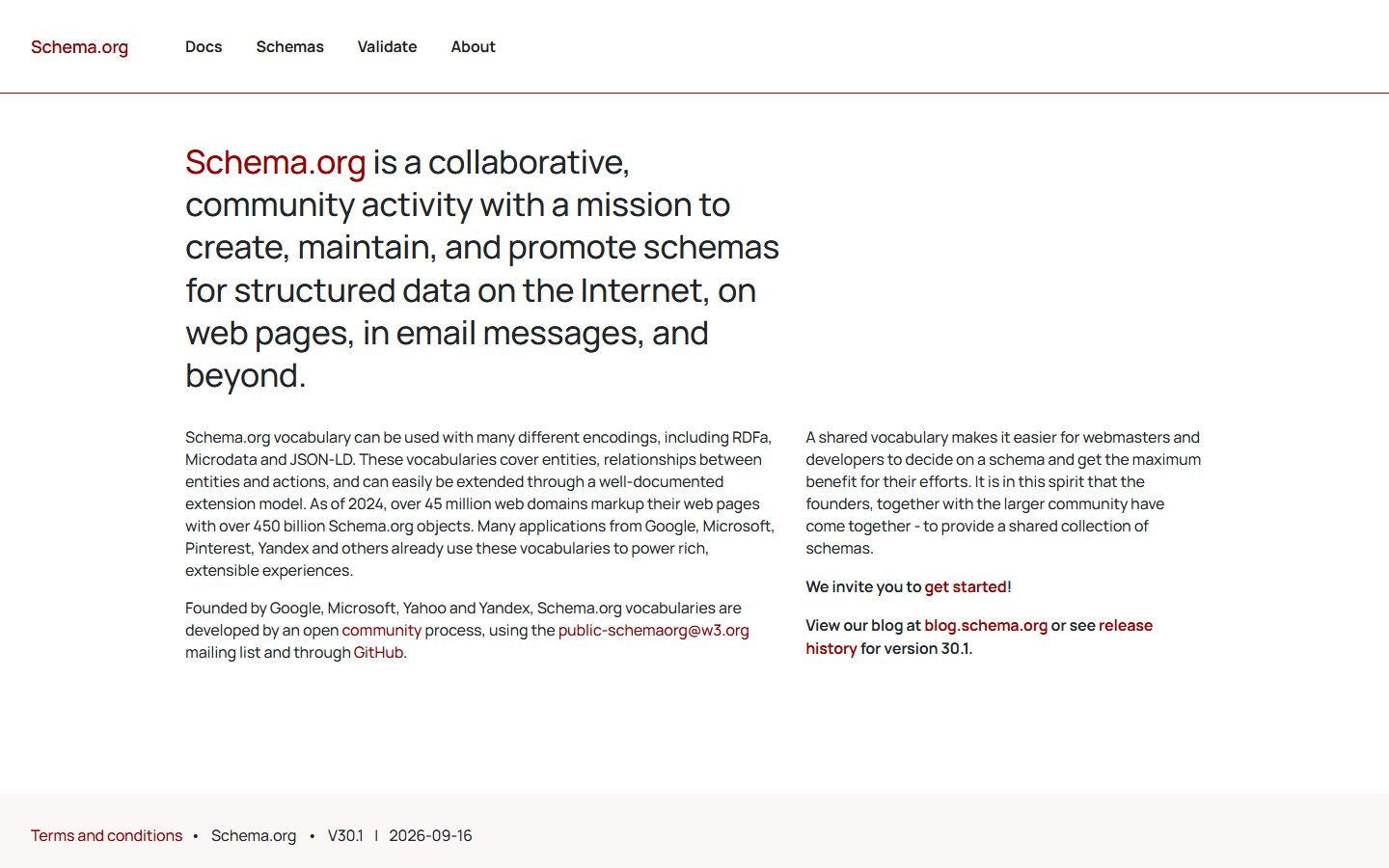
Schema markup is structured data added to your pages that tells search engines what the content is: an article, a product, a business, a recipe. It does not change how a page looks, but it can make you eligible for rich results and helps machines interpret your site correctly.
Which schema types matter for most sites
- Organization or LocalBusiness: who you are, your logo and contact details.
- WebSite: your site name and search action.
- Article or BlogPosting: headline, author, dates and image for posts.
- BreadcrumbList: the path to a page, shown in search results.
- Product and Review: price, availability and ratings for stores.
- FAQPage: questions and answers. Google now shows FAQ rich results only for a limited set of sites, but the markup still describes your content accurately.
How to add schema without writing code
- Use the schema built into your SEO plugin. Plugins such as Slim SEO, Rank Math, Yoast SEO and All in One SEO generate Organization, WebSite, Article and Breadcrumb markup automatically.
- Complete the basics. Add your site name, logo and social profiles in the plugin settings so the Organization schema is accurate.
- Set defaults per post type. Choose Article for posts and WebPage for pages, and make sure each post has an author and a featured image.
- Add specific types where it fits. Use the plugin’s schema builder or block for FAQs, products or reviews on the pages that need them.
Validate your markup
- Open Google’s Rich Results Test and enter a URL, or paste the page code.
- Fix any errors and review the warnings.
- Use the Schema Markup Validator to check any type, including those Google does not show as rich results.
- Watch the Enhancements reports in Search Console for errors across your site.
Rules that keep you out of trouble
- Mark up only what is visible on the page. Hidden or misleading markup violates guidelines.
- Do not fake reviews or ratings. Self-serving review markup can lead to a manual action.
- Do not duplicate schema from two plugins. Disable the overlap so each page has one consistent set.
- Keep it accurate. If a price or date changes, the markup should change too.
Final thoughts
Good defaults from a single SEO plugin cover most of what a site needs. Add specific types only where they describe real content, validate after changes, and avoid running two schema generators at once.
Frequently asked questions
Does schema improve rankings directly?
Not directly. It helps search engines understand a page and can make it eligible for rich results, which can improve click-through rates.
JSON-LD or microdata?
Google recommends JSON-LD. Plugins generate it as a separate script block, which is easier to maintain than markup mixed into the HTML.