A slow WordPress site is rarely caused by one thing. It is usually a few small problems that add up. Work through the causes below in order: the first few are the most common, and each includes how to confirm it and what to do.
1. Slow or overloaded hosting
Confirm: a high time to first byte even on a simple page. Fix: upgrade the plan or move to a host with better resources and server-side caching.
2. No page caching
Confirm: every request generates the page from scratch. Fix: enable the host’s page cache or a caching plugin.
3. Unoptimised images
Confirm: multi-megabyte images in the Network tab. Fix: resize to the displayed size, compress, use WebP or AVIF and lazy-load images below the fold.
4. Too many or heavy plugins
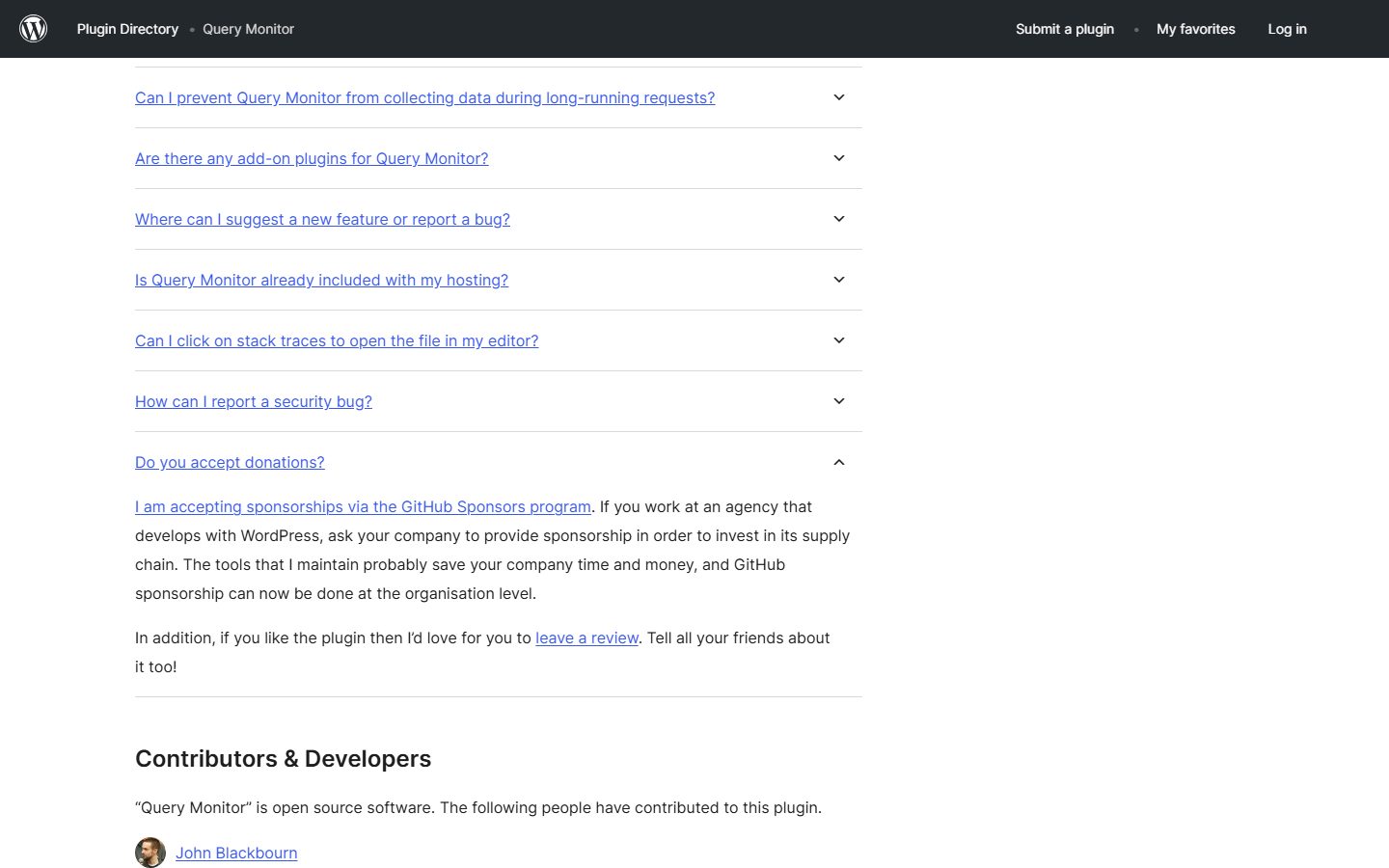
Confirm: use Query Monitor to see which plugins add queries and time. Fix: remove plugins you do not need and replace the slowest with lighter options.
5. A bloated theme or page builder
Confirm: large amounts of CSS and JavaScript loaded on every page. Fix: use a lighter theme, disable unused builder modules or move to a leaner layout approach.
6. An old PHP version
Confirm: check the PHP version in your hosting panel or Site Health. Fix: move to a currently supported version after testing compatibility.
7. No object cache
Confirm: the same database queries repeat on every request. Fix: enable Redis or Memcached object caching if your host supports it.
8. A bloated database
Confirm: large autoloaded options, thousands of revisions or expired transients. Fix: clean them carefully with a backup and limit post revisions.
9. Render-blocking CSS and JavaScript
Confirm: PageSpeed Insights flags render-blocking resources. Fix: defer non-critical scripts, load critical CSS first and remove unused code.
10. Too many web fonts
Confirm: many font files in the Network tab. Fix: limit families and weights, self-host fonts and preload the ones you use above the fold.
11. Third-party scripts
Confirm: analytics, chat, ads and social widgets taking significant time. Fix: remove the ones you do not need and delay the rest until interaction.
12. Admin-ajax and the Heartbeat API
Confirm: frequent background requests in the Network tab. Fix: reduce Heartbeat frequency and fix plugins that call admin-ajax.php excessively.
13. WooCommerce cart fragments and dynamic pages
Confirm: an extra request on every page of a store. Fix: disable cart fragments on pages that do not show a mini cart, and exclude only the cart, checkout and account pages from caching.
14. Bots and bad traffic
Confirm: spikes in server logs from a few IP addresses or user agents. Fix: use a firewall or CDN to block abusive traffic and rate-limit login and search.
15. No CDN for a global audience
Confirm: slow loads for visitors far from your server. Fix: serve static files through a CDN.
A simple order of attack
- Measure with PageSpeed Insights and note the biggest issue.
- Fix hosting, caching and images first.
- Trim plugins and scripts.
- Tune the database and fonts.
- Measure again and repeat.
Final thoughts
Do not install five speed plugins and hope. Find the biggest problem with a measurement, fix it, and measure again. Most sites gain the most from better hosting, one good cache and smaller images.
Frequently asked questions
Which speed plugin is best?
The best setup is one cache at the server or plugin level, not several. Pick one well-maintained option and configure it carefully.
Will deleting plugins make my site faster?
Often, if they load scripts or run queries on every page. Inactive plugins are not the problem, but unused active ones can be.